
Looking to use multiple GitHub accounts on the same computer?
Look no further: In this post we will provide a step-by-step tutorial on how to do just that.
Let's get started!
SSH Key for every account
1 - First, you need to make sure you have an SSH key for every account. You can follow the steps from this official GitHub tutorial to achieve this: https://docs.github.com/en/authentication/connecting-to-github-with-ssh/adding-a-new-ssh-key-to-your-github-account
2 - Store the keys of every account in your ~/.ssh directory:
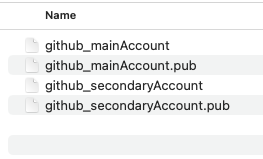
3 - Ensure the files have the right permissions. You don't want to have insecure keys :)
Issue the following command for each private key:
A gitconfig file to rule them all
1 - Next, you will need to add a general gitconfig file:
2 - We will add these lines to the .gitconfig file to use our mainAccount globally, and our secondaryAccount only in the specificFolder. Of course, you can add as many GitHub accounts and folders as you like:
A gitconfig file for every account
1 - Create a git config file for the main account:
2 - Add these lines to the file:
3 - Create a git config file for the secondary account:
4 - Add these lines to the file:
Add SSH keys to your computer
So, the SSH Agent can take care of the authentication for you, and you don’t have to type in passwords at the terminal. We want to run these lines every time we start a terminal, so we will add them to the startup file.
1 - First, remove old keys:
2 - If you're on a Mac, add these to your ~/.zshrc (if you are using zsh) or to your ~/.bashrc (if you are using bash):
Or, if you're using Linux, add:
3 - To check if the ssh keys were added, you can list them:
And that’s all!
You can go now to your specificFolder and run:
It will show the name you set up in your secondary account.
Also, you can go to any other folder of your system, run the same command and it will show you the name you set up in your main account.
We hope you've found this article useful. Thanks for reading!