
In order to integrate the Facebook SDK we are going to use the Facebook Login Button to authenticate through Facebook in our Android and iOS App.
We start the process by creating a new react native app. Open your terminal and run:
After a while the app is created, so we need to jump into the main directory by running:
Then we need to install the React Native Facebook SDK
Since in React Native version 0.59 linking is automatically, we don’t need to touch anything around the pod files. All we need to do is run the pod install command.
At this point in time we have the package installed on Android and iOS.
In order to make use of the Facebook SDK we need to create (or use if you already have one) a developer account in Facebook. Go to the following url: https://developers.facebook.com/
Once the developer account has been created, we need to create an application within the account.
Click on the Create App button.
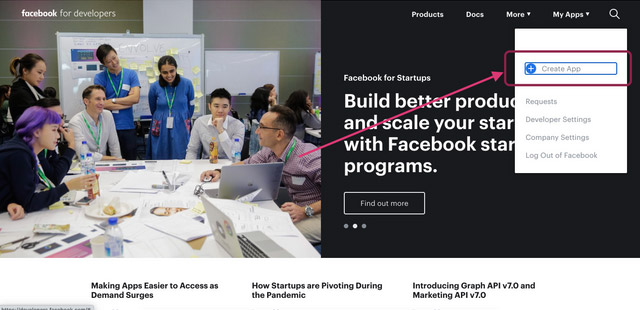
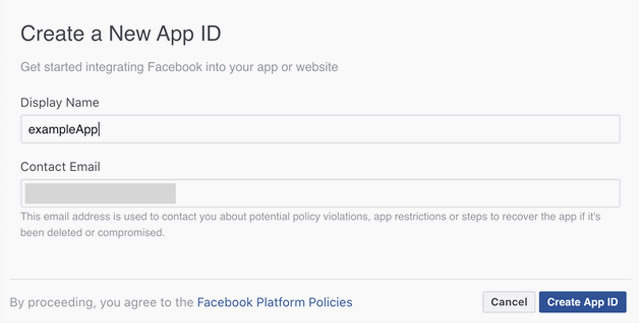
Complete the Display Name and enter a valid contact email address.
Once the application is created we need to grab the APP ID
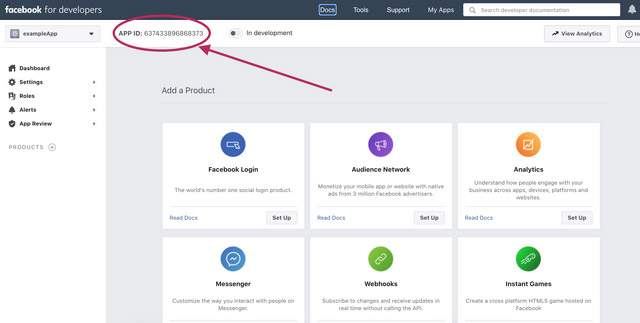
In my case the APP ID is 637433896868373
- React Native App is created
- Facebook Developer Account is created
- Let's dive into the Android and iOS specific configuration
Android Configuration
Step 1
Open your android/app/res/values/strings.xml file and add your recently created APP ID
Step 2
Next we need to add user permissions. Open the android/app/src/main/AndroidManifest.xml file and add the ApplicationId meta-data tag.
Step 3
Go to the following URL: https://developers.facebook.com/quickstarts/?platform=android
1. In the input select the app you generated.
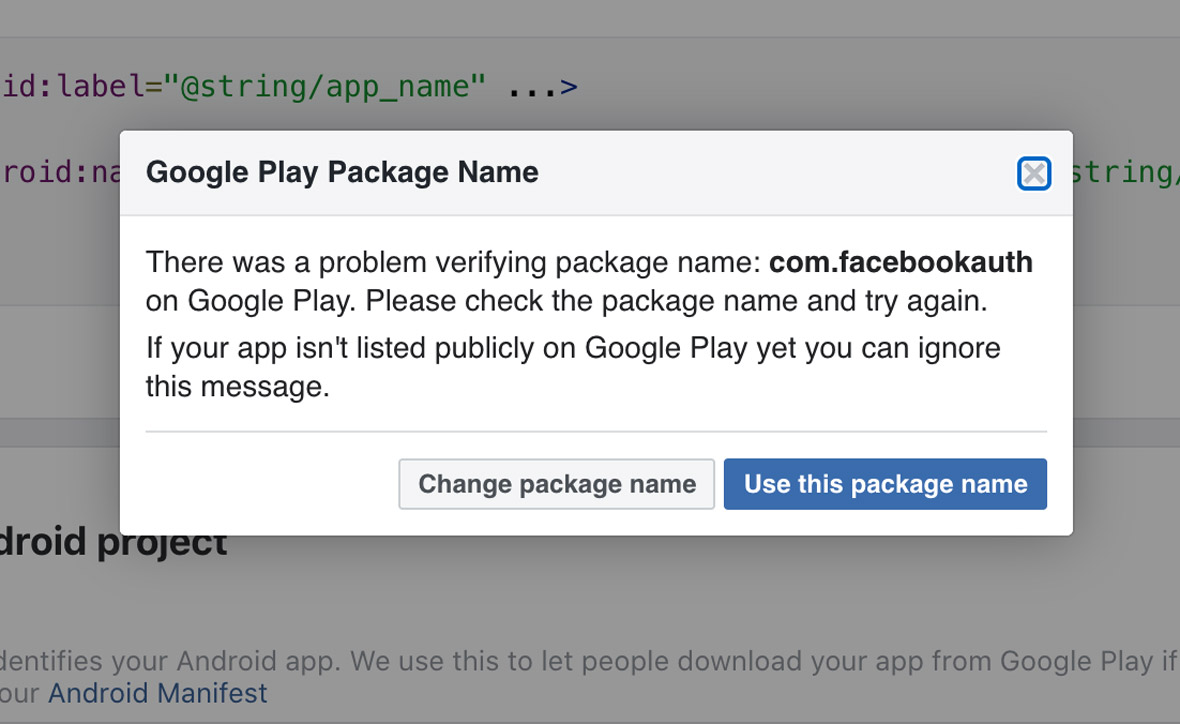
2. In the section Tell us about your Android project complete as follows: You can find the Package name and the Activity Class Name in the file /android/app/src/main/AndroidManifest.xml
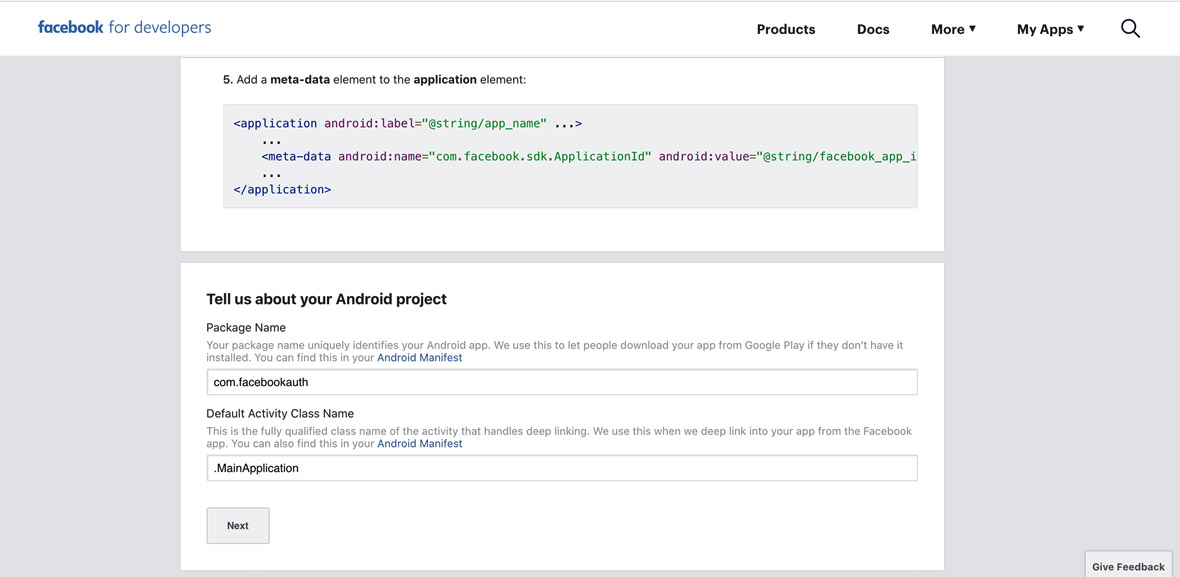
3. Next Click on the Use this package name button
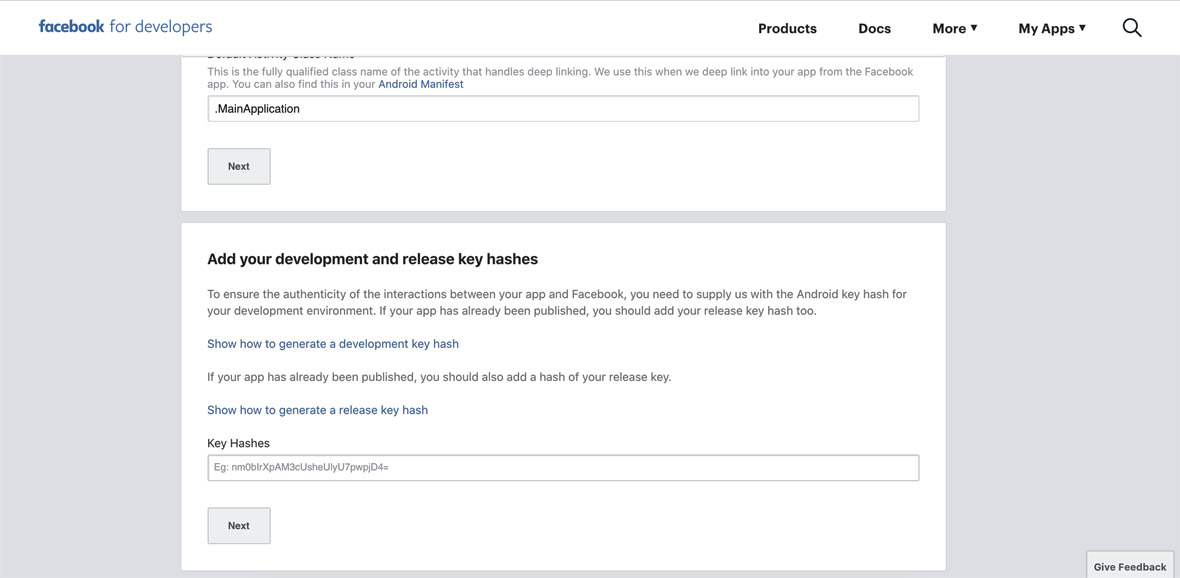
4. Follow the instructions to complete the Key Hashes
iOS Configuration
Step 1
Open the xcworkspace file on Xcode.
Then open the AppDelegate.m file. Augment you your file with the following code:
Step 2
On Xcode right click on the info.plist file. Open As > Source Code.
Add the following code
- React Native App is created
- Facebook Developer Account is created
- Android configuration completed
- iOS configuration completed
Create Login with Facebook Button
Edit your App.js file and add the Login with Facebook button:
import React, { useState } from 'react';
Test your App
Test in Android
You need to open the project on Android Studio in order to run the app. Then run this command:
Test in iOS
In the next link you can check how to leverage React Testing Library
Let's dive into the Android and iOS specific configuration